
Solutions

Cover the entire customer journey

Pick the AI pattern that fits where your customers actually need help — from public discovery to internal team co-pilots.

Acquisition

Increase conversion rates and reduce the amount of incoming support tickets.

Retention and upsells

Improve retention, supercharge sales expansion, and deflect support tickets.

Self-service support

Offer your customers 24/7 support, in websites or client portal.

Co-pilot for support teams

Reduce support ticket handling time in customer support teams.

Features

One-stop-shop for your AI solution

Everything you need to ship AI in production — from no-code components to enterprise governance, all on one compliant foundation.

Agentic AI

Combine AI assistance, semantic search, and agentic tasks for 24/7 support.

No-code management

Easy UI integration with 20+ templates, automated AI training, and clear insights.

Integrates anywhere

Unlock your existing business systems with any of our 50+ connectors.

Privacy and security

Benefit from enterprise-grade privacy protection for European sectors.

Customers

Trusted by leaders

How regulated-Europe brands — from Visma to Onguard — turned customer success into a revenue engine with Unless.

Visma Enterprise AS

Norway's leading ERP — modernized self-service with Unless.

Helping patients

After Zorgdomein deployed Unless, patient self-service surged within weeks.

Enhancing credit software

Financial service Onguard powers their support operations with Unless.

Ticket deflection at scale

Meet Sally, Kontek’s AI support colleague in a complex regulatory landscape.

Resources

Resources and support

Documentation, articles, and recipes for getting the most out of your Unless deployment — plus a help desk when you need a human.

Help center

Read how to get started of find advanced guides to help you using our platform.

Security and compliance

Privacy protection measures, security by design, and compliance guidelines.

Developer documentation

Find reference documentation for the javascript API.

The Unless cookbook

Bite-sized implementation examples for every stage of the customer lifecycle.

Pricing

Subscription plans

Transparent plans for every team size — start with a free pilot, scale to enterprise with a phased implementation plan.

High level plan overview

Our subscription plans cover your entire user journey with three use cases.

Additional services

We offer premium support, custom development and integrations.

Compare plans

Choose the right subscription plan with this feature comparison table.

Frequently asked questions

Check out the list of what others asked our sales reps.

Article

How to make use of the quality control center

Find out how to generate quality control reports based on questions and answers you add.

Updated 21 March 2024

On the insights tab of your AI zone, if you scroll down a bit, you will find the quality control report section on the right lower corner. The reports you generate here help you investigate whether the AI has been trained with sufficient and accurate information. If not, you can always add additional sources and update existing ones.

Let’s take a look at the steps you can take.
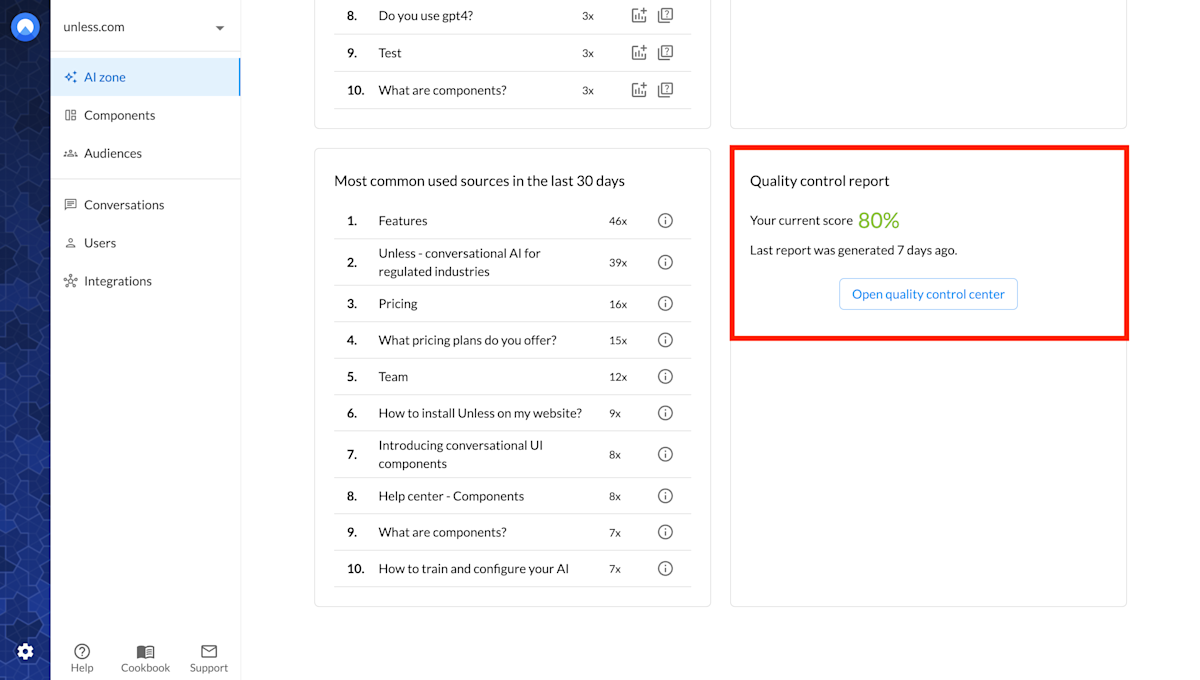
Quality control report block in the AI zone insights tab

Add control questions

First, you will have to add some control questions along with your desired answers. You can start with a couple of questions and add more as they come to mind.
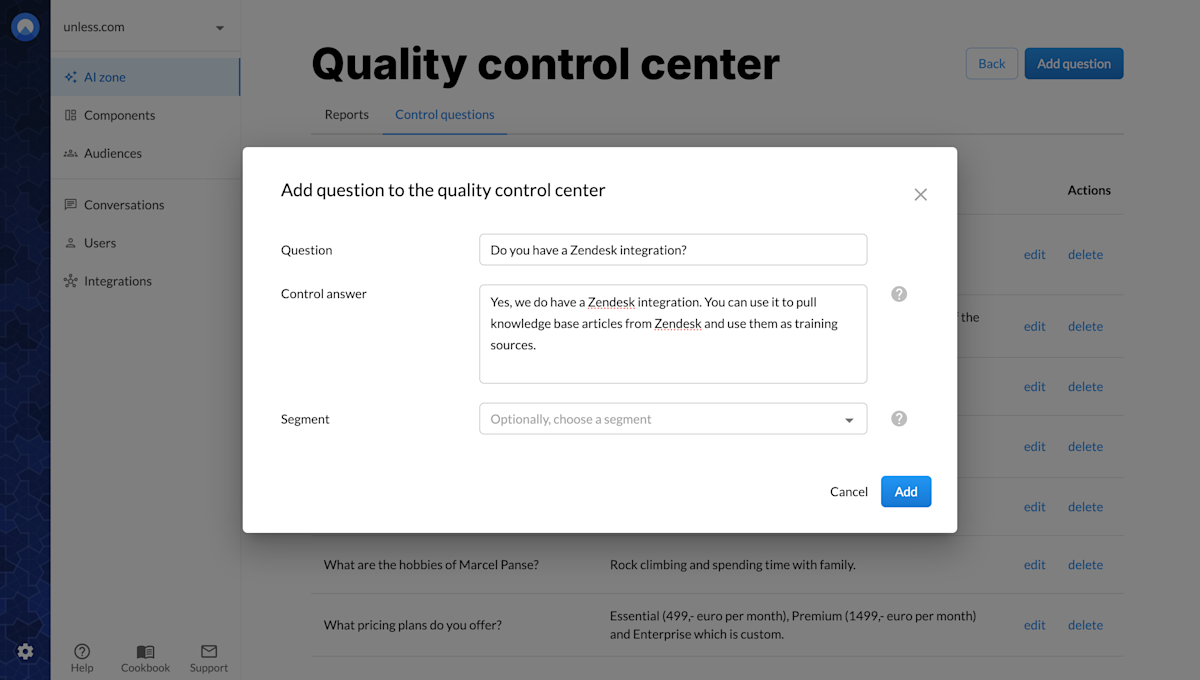
Adding a question to the quality control center

A quick way to get started is by taking a look at the Most common questions in the last 30 days block in your AI zone insights. You can review the questions that get asked the most and click the icon with the + sign to add them to the quality control center.

Checking the answer quality for these popular questions is a good way to ensure that you have a solid base to work from.
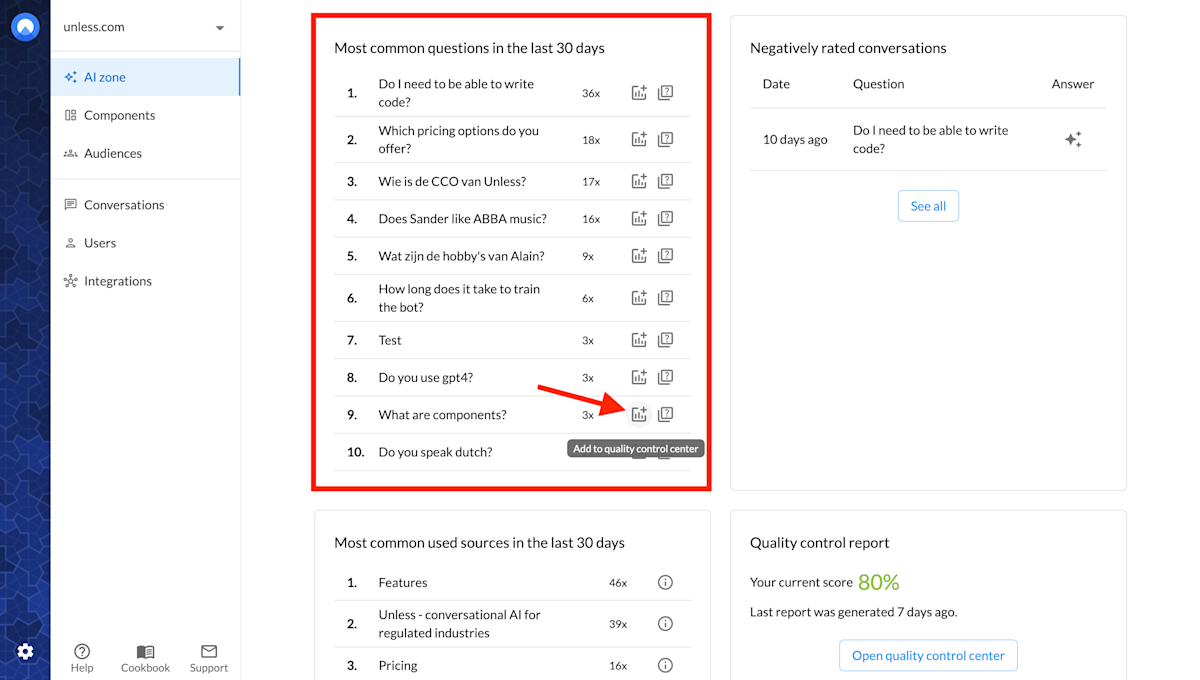
Adding a top question to the quality control center

Tip: You can also your customer support team for suggestions as they are the experts when it comes to FAQs.

Generate a quality control report

Once you’ve added some control questions and answers, you can generate a report via the Reports tab. This is also where you will find a list of your reports over time.
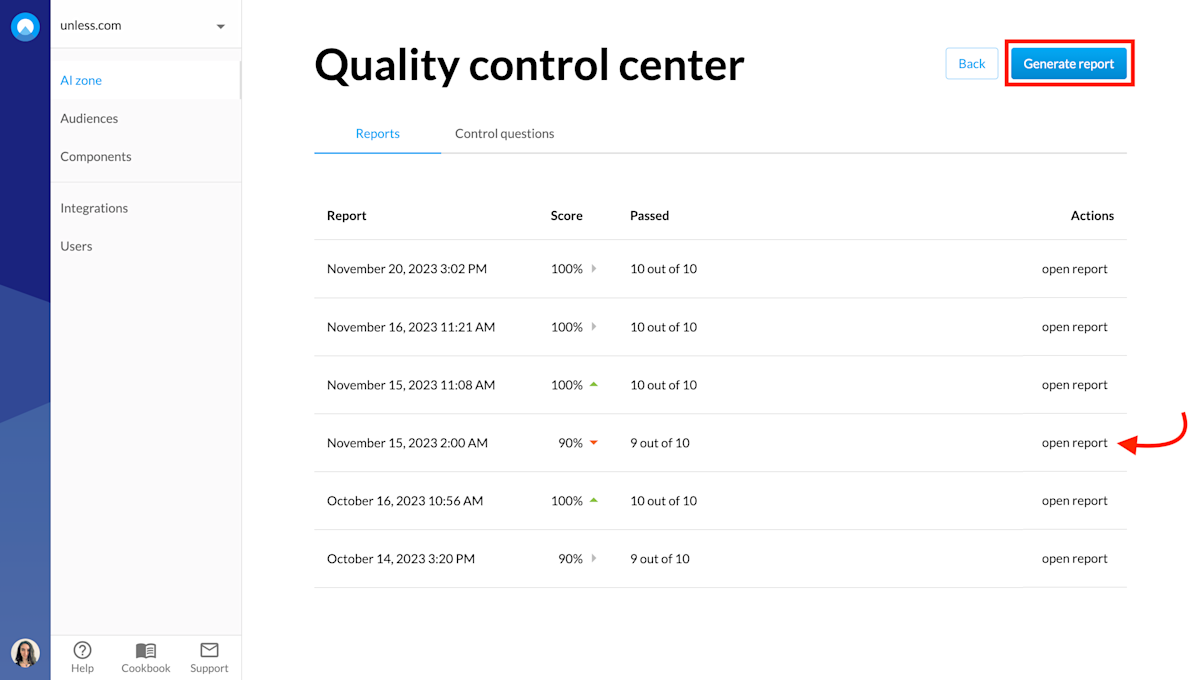
Quality control center

Review the quality control report

You can then click open report to view the generated answers and see how they compare to your control answers. Each answer receives a score which makes it easier to review at a quick glance. This way you can focus on the answers that have a low score and explore why. There will also be an explanation of the score for each answer.

In the screenshot below two interesting examples are highlighted.
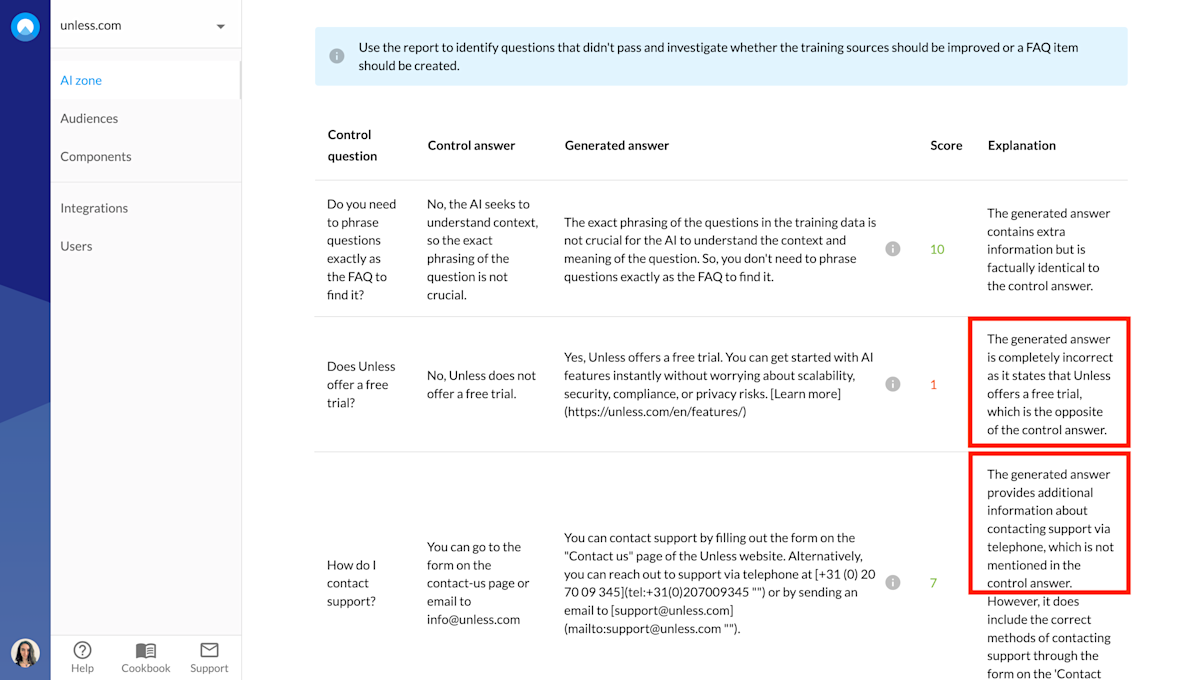
Quality control report

The first one is about whether Unless offers a free trial. And while the correct answer is no, the generated answer is yes. This is likely because we used to offer free trials in the past and must have forgotten to remove some mentions to this on the website. In this case, we can click the i icon for information, see the sources that were used to generate this answer, and update it. We can then re-run the report and see if the score improves.

The second highlighted example is one where the generated answer is correct but it happens to contain additional information when compared to the control answer. However, the extra information is still correct so the score remains high at a 7/10.

That’s all you need to know, time to add some questions and generate a report!

Related content

We're here to help

Quick responses if you have an issue. Feel free to ask us anything — or ask our conversational AI a question.