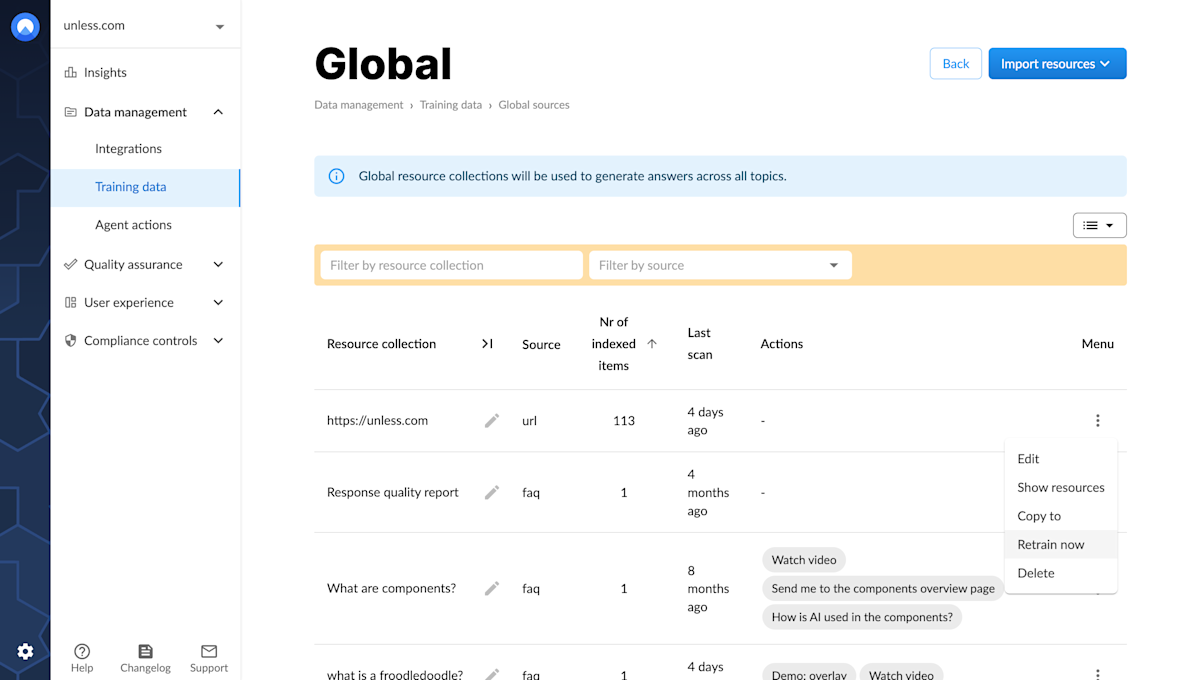
Before you can turn your user experience into a dialogue, first we have to make sure that your AI is an expert in your company and product. To do this, you can start by heading over to the Training data tab under data management and view Global sources.
Note: It is also possible to organize your sources into topics to avoid conflicts. Answers will then be generated using the sources of one topic at a time, preventing mix-ups. This might be relevant if you have sources that relate to different products, internal vs. external use cases, etc. Find out more in this article about topics.
Training your AI
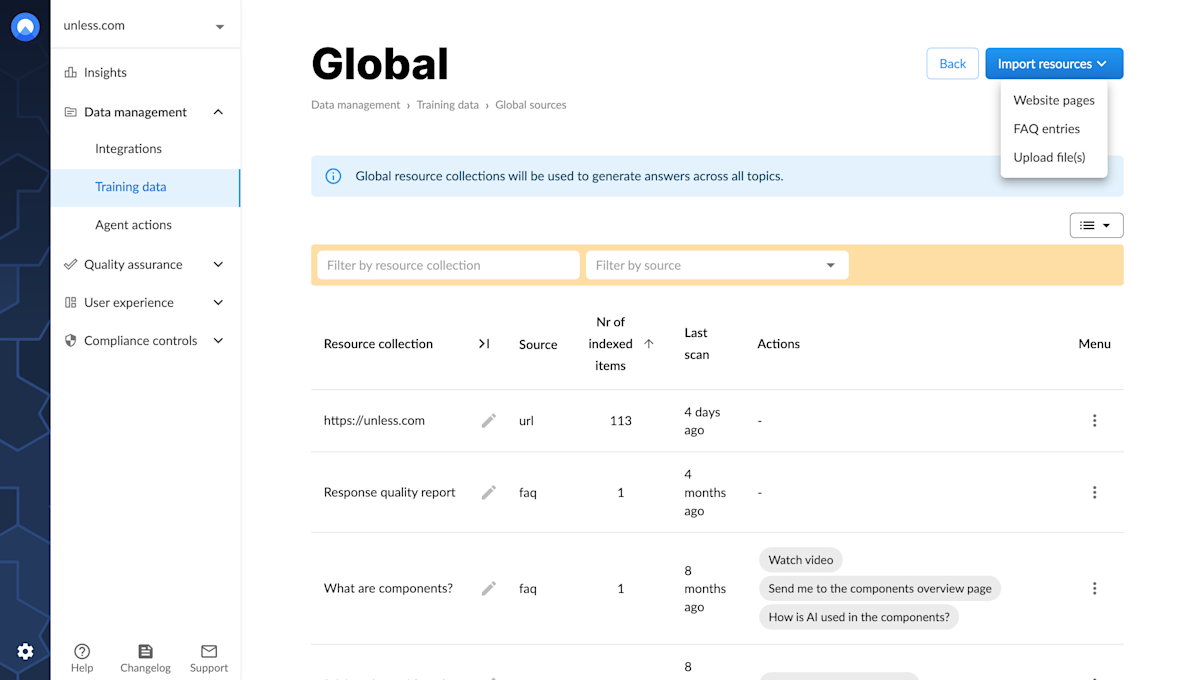
First, you have to train your AI. Luckily this can be done easily and in little to no time. All you have to do is click the Import resources button and select the source type you will be adding whether it be website pages, FAQs, files, etc.
Note: The AI is only as good as the content it is trained on so it is important to have comprehensive and up-to-date information. Check out this article about good training sources.
Website pages
Select website pages will lead to the pop-up that can be seen in the screenshot below. Here you can simply add your website URL and define whether you’d like the entire website to be scanned or a single page. You can include or exclude certain paths if you think the content on those pages might lead to answers that are not relevant or up to date for example.
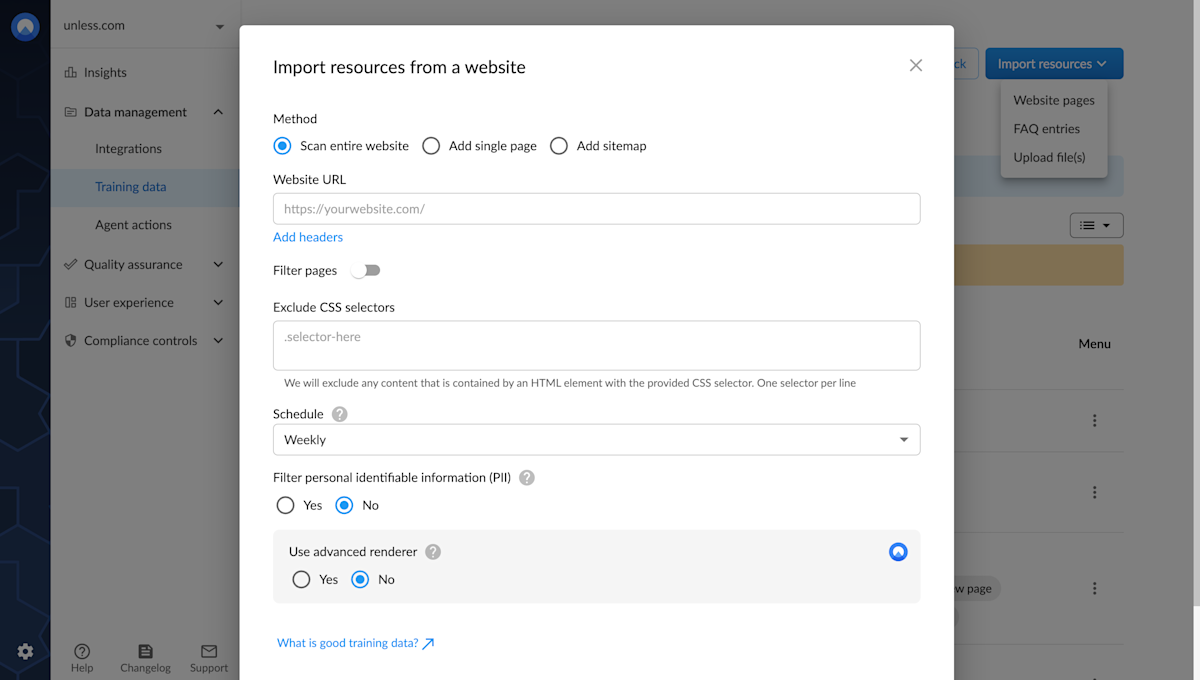
It is also possible to add a sitemap as a training source using a URL or uploading a xml file.
FAQ entries
If you select FAQ entry, you will see the pop-up below where you can add a single FAQ by filling in the question and its answer, along with a title.
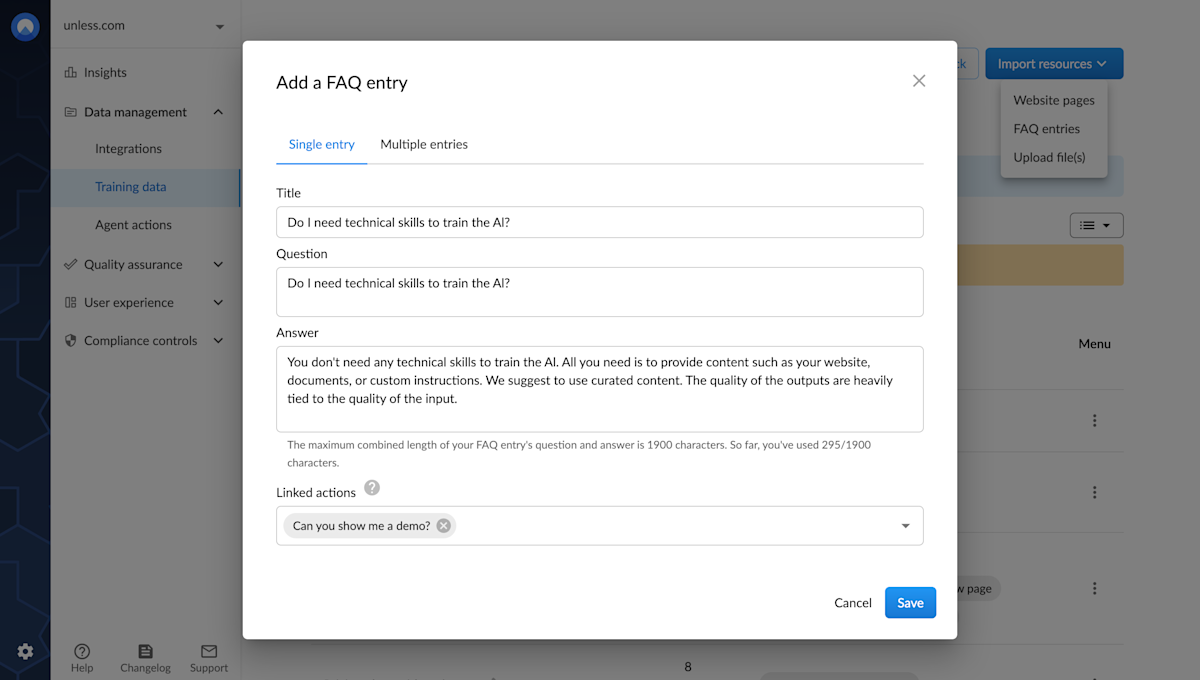
Optionally, you can add (or edit) multiple FAQ entries at once. You start by exporting a CSV file containing your existing FAQ entries. You will use this file as a template for adding new FAQs so make sure you have at least one FAQ to begin with.
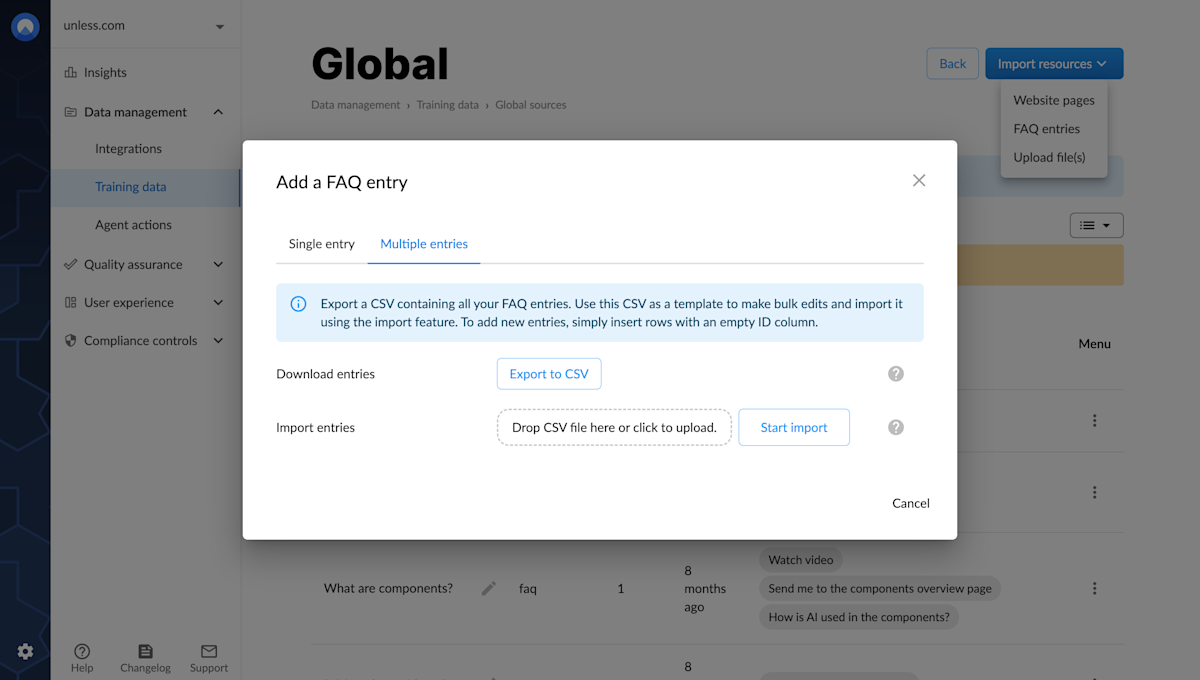
In this file, if you would like to update existing FAQs, you can simply change the text where needed, without making changes to the ID column. This enables you to do bulk edits without editing each FAQ one at a time in the Unless dashboard.
To add new FAQs, simply insert rows with an empty ID column. You can then upload the CSV file to import the new or updated FAQ entries.
Files
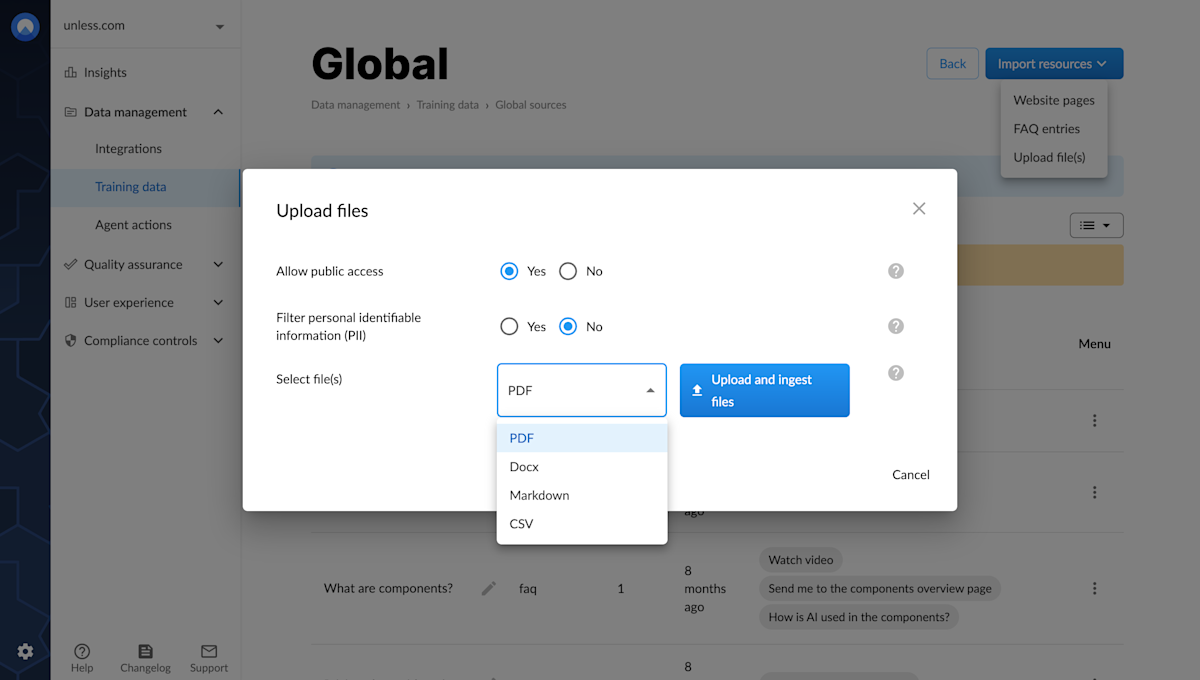
Uploading files is pretty straightforward. You decide whether to allow public access or not. If marked as public, the AI will show a link to the source. You can then choose the file type from the supported formats: PDF, Docx, Markdown, and CSV.
Keep in mind that the formatting of a file is very important for ensuring optimal training of the AI. They should be well-structured and organized in a logical and coherent manner. This can be achieved through the use of appropriate headings, subheadings, bullet points, and other formatting techniques to break up large chunks of text into more digestible pieces.
Images within files will not be indexed, and tables with extensive data might not yield optimal results, as the AI thrives on written content with contextual meaning.
Integrations
In addition to the training sources mentioned above, it is also possible make use of integrations with Zendesk, Salesforce, and the like. These integrations allow you to pull knowledge base articles directly which can mean less clutter. Additionally, this gives you the option to include or exclude sections to get more specific about your training sources.
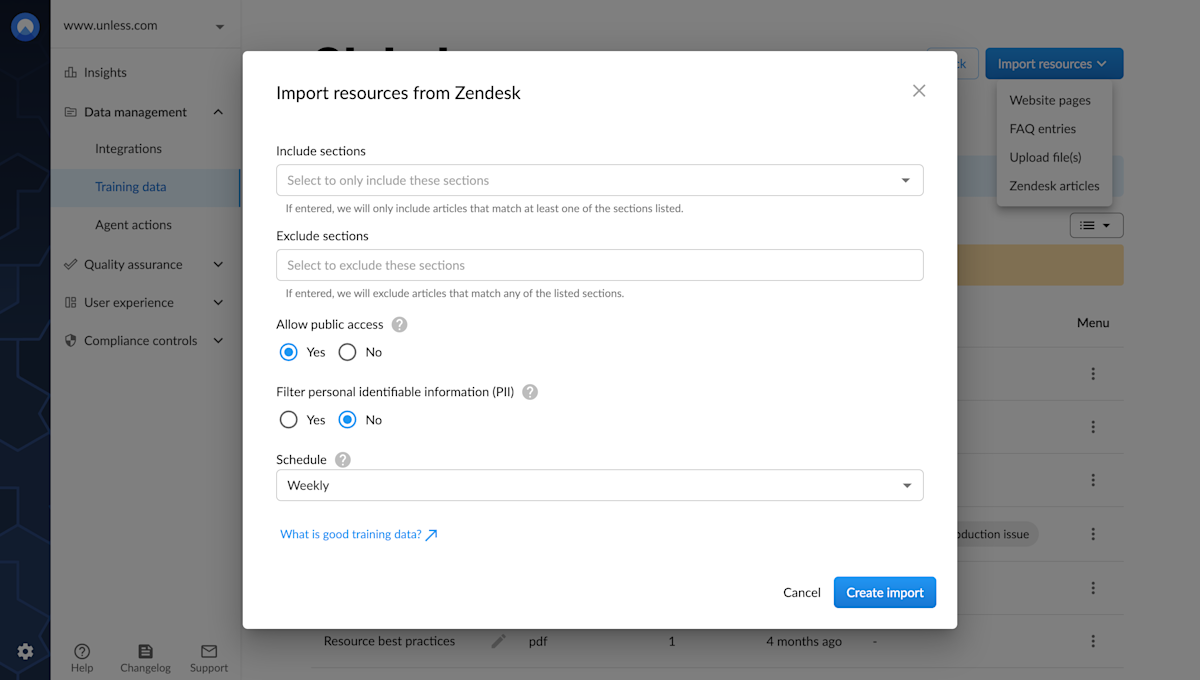
Once you’ve specified these details for whichever source type you are using, you can click Save and the AI will scan the source you’ve defined. This usually doesn't take long. The source(s) you’ve added will then appear in Global (or topics) with details about when they were created, when the last scan was, etc. Under the menu (using the three dots), you can edit or delete a source, view the indexed items, or retrain the AI if the content has been updated since the last scan.